

You'll likely want to add more shortcuts to your phone, and having everything accessible with just a tap or two is essential for many users, both to save time and avoid getting lost in menus. Notification panels, expandable quick settings, and apps that create shortcuts are fantastic ways to personalize your Android experience and get to what you really need faster.
Android offers specific apps to enhance and expand quick settings , giving you easy access not only to system shortcuts (Wi-Fi, Bluetooth, brightness, etc.) but also to apps, advanced features, and even performance tools. We've discussed some of these over time, so we've decided to compile a list and add more helpful information to help you choose the one that best suits your needs.
We're going to suggest several apps: they all serve a similar purpose, but each implements it in a very different way. You'll find options for adding shortcuts , customizing the notification panel, creating new buttons using Android APIs, and accessing deep system settings without having to navigate through endless menus.
Quick Settings - Toggle

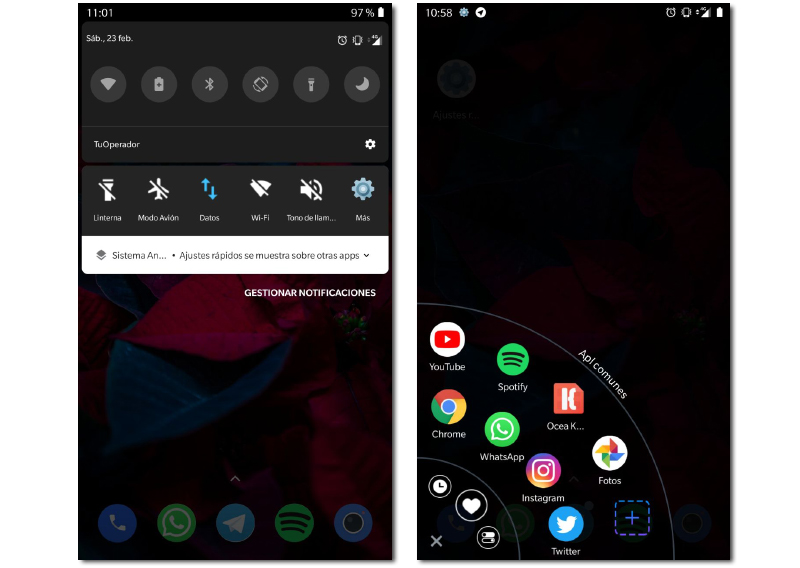
This app has many interesting features without requiring payment , which is appreciated if you want to improve your shortcuts without spending money. Alterna offers a quick settings system that you can access at any time, regardless of the app you're using on your Android device, without needing to open the traditional top panel.
You can access your favorite apps with a simple swipe from any bottom corner to the center of the screen. This gesture creates a floating panel with shortcuts to your most frequently used apps and tools. This type of bottom-of-the-screen access is especially convenient for those who use their phone with one hand.
Furthermore, Alterna adds even more settings to the navigation bar with shortcuts to Wi-Fi, Bluetooth, screen brightness, flashlight, and mobile data, though these appear as a persistent notification for easy access. This saves you from having to go to the system's Settings app and navigate through multiple screens.
The app shortcuts in the bottom corner are fully customizable : you can choose which apps appear, change their order, and decide which corner you want to use to activate them. This way, you can transform the bottom of the screen into a quick control zone tailored to your daily needs.
Another important advantage, inspired by common user feedback on this type of app, is that Alterna doesn't need an excessive number of permissions to function: it focuses on providing quick access without excessively invading privacy or overloading the phone with unnecessary processes, something that should always be monitored in this type of tool.


Bottom Quick Settings

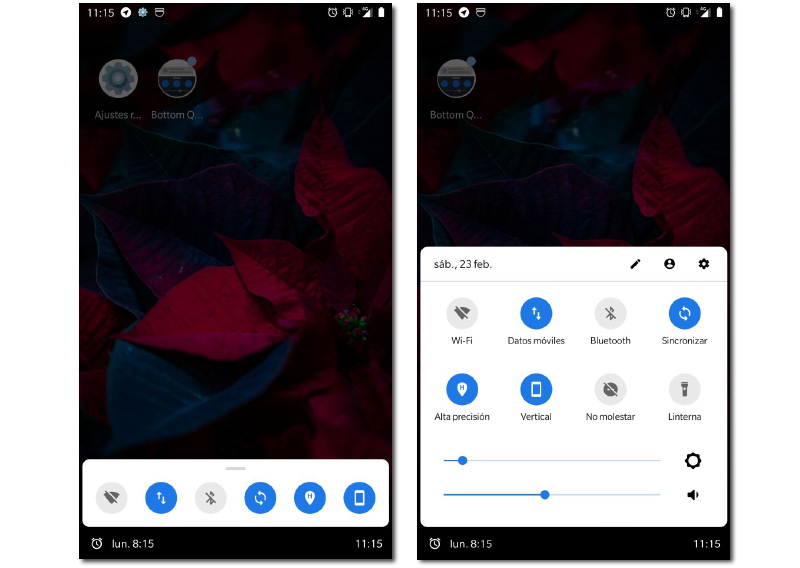
This app, called Bottom Quick Settings, is designed to make opening your quick settings easier and more accessible , as it's accessed by swiping up from the bottom. It works particularly well for phones with large screens, where reaching the top with your finger can be awkward.
It works simply: swiping down from the bottom edge reveals a panel inspired by Android's quick settings, but moved to the bottom . This is especially useful if you use your phone with one hand or if you want to replicate the experience of some manufacturers who have already moved the controls to the bottom.
The shortcuts are quite limited in the free version, although they might be sufficient for many users: you can access the most basic ones like Wi-Fi, mobile data, screen orientation, Bluetooth, flashlight, and Do Not Disturb mode . You can also add volume and brightness sliders to control sound and lighting without having to use the physical buttons.
If you want to add or customize more options, you'll have to pay . The paid version costs €2,29 and includes the ability to change colors, icons, tile order, add more shortcuts, and other customization elements. Unlike other apps riddled with full-screen ads, this clear payment model helps avoid annoying delays when you need something quickly.
In any case, the free version is highly recommended, and if you don't need extensive customization, this app is very practical. One of its most useful features is that you can activate and deactivate it whenever you want , in case you use system navigation gestures and don't want conflicts between the two. This way, you can test whether it suits your phone usage style.

Quick Settings
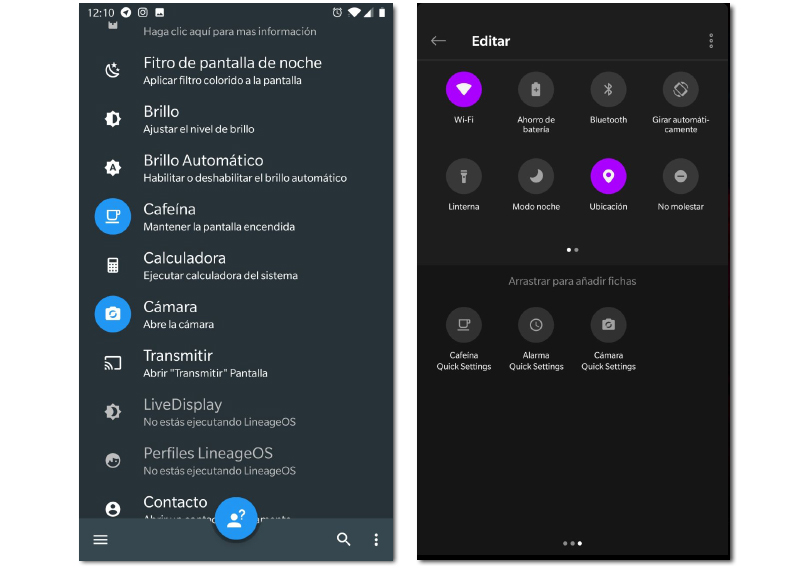
We talked about Quick Settings a while ago , but we thought it was worth including again because it focuses on leveraging Android's Extensible Quick Settings API . Quick Settings is one of the least intrusive apps on the list, since it works directly with the shortcuts we already have on our system, adding new tiles to the native panel.
We simply select the tiles we want and add them to our quick settings. You can find shortcuts to features like airplane mode, data, Wi-Fi, brightness, auto-rotate, flashlight, or sound, but also others geared towards advanced users , such as developers or those who frequently test new features.
However, some tiles are only available to root users , so if you're a superuser, you'll have many more options: shortcuts to deep settings, debugging tools, advanced network changes, or actions that would normally require several steps within the Settings app. The integration with the original panel makes it seem as if all these features come standard with the system.
A clear advantage is that you don't need to learn a new interface: you still use the same notifications and quick settings panel , but with more buttons, much like how other apps (such as music services, productivity apps, or smart brightness apps) leverage this API to add their own features. This reduces the learning curve and keeps your phone tidy.
If you want to know more about this, take a look at our guide, where we delve into how these tiles are configured, what advantages they offer over floating solutions, and how to combine Quick Settings with other services that also add custom buttons.

powershade
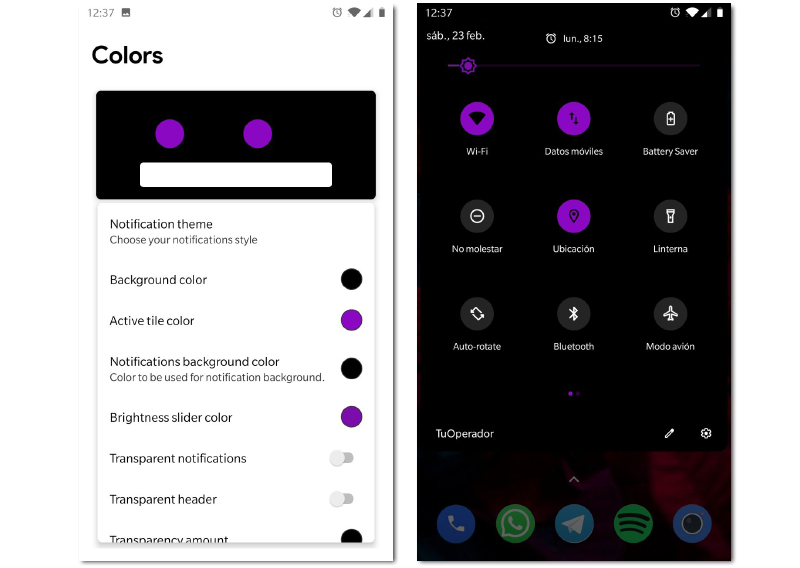
Adding options is great, but to truly personalize it, it's also important to be able to customize the design of the notification bar and quick settings panel . That's precisely what Power Shade allows us to do. It's an easy-to-understand and fast app that modifies the appearance of your notification bar and quick settings panel to give them a more complete look or one more similar to other custom interfaces.
Power Shade focuses on visuals and organization: it lets you change colors, icons, tile shapes, quick settings layout , and other aesthetic details. If your phone's interface isn't to your liking, or you want something cleaner and more organized, this app can give it a much more polished look without needing to install a custom ROM.
The app is free, but some options require payment. However, the free options are sufficient for modifying basic colors, bar style, and icon organization , allowing you to create a more aesthetically pleasing quick settings panel without spending any money if you don't want to.
One of Power Shade's strengths is its seamless integration of notifications and quick settings, helping to avoid the feeling of bloatware with too many features and background processes. The goal here is to give you more visual and organizational control without hindering access to your notifications or system buttons.
By combining Power Shade with any of the apps mentioned above, you can create an easily accessible bottom panel, add extra tiles, and customize the design to your liking. This reduces the steps required to change common settings like Wi-Fi, data, brightness, or airplane mode, which on many phones still requires three or four taps in the traditional Settings app.

What did you think of them? Will you use any of them?
All these shortcuts and custom panels are there so you don't have to waste time navigating through deep menus every time you want to turn on airplane mode, change the brightness, check your data usage, or adjust the sound. Taking advantage of quick settings apps, custom tiles, and panel customization tools lets you tailor Android to the way you use your phone, speeding up tasks you perform multiple times a day and making everything truly just one or two taps away.
